
Raycast’s AI features now let you plug in any OpenAI-compatible provider via a providers.yaml custom provider. CometAPI is a gateway API that exposes hundreds of models behind an OpenAI-style REST surface — so you can point Raycast at https://api.cometapi.com/v1, add your CometAPI key, and use CometAPI models inside Raycast AI (chat, commands, extensions).
What is Raycast?
Raycast is a productivity launcher for macOS that integrates commands, scripts, and — increasingly — AI directly into your operating system. Its AI subsystem provides chat, AI commands, model selection, extensions (tooling that lets LLMs perform actions), and the ability to use local models (via Ollama) or Bring Your Own Key / Custom Providers to connect remote model providers. Raycast exposes a model picker, settings for AI, and a providers.yaml template that advanced users can customize to add OpenAI-compatible backends.
Raycast has been rolling out BYOK (Bring Your Own Key) and Custom Providers in 2025, enabling users to run Raycast AI against their own API keys and custom endpoints (enabling more flexible cost management and private provider options). This change is the technical foundation that makes integrating CometAPI feasible from end-user Raycast preferences.
How does Raycast surface AI to users?
- Quick AI: instant prompts from the launcher.
- AI Chat: conversational sessions with attachments/context.
- AI Commands/Extensions: developer-built commands or tools that use LLMs.
(You can manage models, BYOK keys and custom providers from Settings → AI.)
What is CometAPI?
CometAPI is an API-aggregation platform that exposes hundreds of different AI models (text, image, audio, video, embeddings) through a single, OpenAI-style REST surface. Instead of writing and maintaining provider-specific client code for OpenAI, Anthropic, Google, Midjourney, Runway, etc., you call the CometAPI endpoint and choose the model you want via a model string. That simplification is powerful for experimentation, cost/failover routing, and centralizing billing and observability.
Key capabilities
- Text/chat completions and assistants (OpenAI-like chat APIs).
- Image generation and image editing endpoints.
- Embeddings for semantic search/RAG (retrieval-augmented generation).
- Audio (TTS and STT when provided by underlying models).
- Video generation for specialized backends (Sora, Veo, etc.).
CometAPI also provides SDK snippets and OpenAI-style request formats so porting existing code is straightforward.
Why that’s significant right now: the market is shifting toward gateway APIs (convenient single endpoints, cheaper options, and model choice). CometAPI is one of the commercial players in that space, so combining it with Raycast’s custom provider support gives you immediate access to a broad model catalog from your macOS workflow.
Why integrate CometAPI with Raycast?
Short answer: to run any model exposed by CometAPI directly from your Raycast AI flow — Quick AI, AI Chat, or custom AI commands — without switching tooling.
Benefits:
- Use cheaper/faster or specialized models for different tasks (summaries, code, embeddings, image gen) while staying inside Raycast.
- Centralized billing and throttling via CometAPI while controlling model selection from Raycast.
- Minimal code changes: Raycast supports OpenAI-compatible custom providers and BYOK, so CometAPI often plugs in by swapping the
base_urland API key.
(These capabilities are possible because Raycast supports custom providers and BYOK, and CometAPI exposes OpenAI-compatible endpoints at https://api.cometapi.com/v1. )
What are good use cases for this integration?
- Developer helper: code explanation, refactor suggestions, unit test generation, and PR summarization — invoke from Raycast and get inline answers.
- Notes and summaries: select text, run a Raycast command to summarize or extract action items using a CometAPI summarization model.
- Documentation authoring: generate function docs or README snippets via Raycast AI commands and keep iterations local.
- Image / multimedia generation: if CometAPI exposes image endpoints, you can use Raycast extensions that call image endpoints (e.g., "Generate Image from Prompt" extension) — useful for quick mockups.
- Embeddings + semantic search: use CometAPI embeddings to power local search workflows — Raycast can be the front end that queries your embedding index via a small local script or a cloud function.
What environment and conditions must be prepared?
Before starting, ensure you have the following ready:
System & Raycast
- macOS (Raycast is macOS-native).
- Raycast installed. Prefer a recent version that supports Custom Providers / BYOK (Raycast added BYOK in v1.100.0 and continues rolling out Custom Providers). If your Raycast is older, update it.
Accounts & keys
- CometAPI account and a valid CometAPI API key (you’ll use this in Raycast settings or environment variables). See CometAPI dashboard/documentation.
Optional developer tools (for testing or local development)
- Terminal (for cURL).
- Python / Node / OpenAI SDKs if you want to test CometAPI access directly before wiring it into Raycast. CometAPI supports direct usage via standard SDKs by overriding
base_url.
Permissions & networking
- Ensure Raycast and your macOS network policies allow HTTPS calls to
api.cometapi.com. - If you are in a corporate environment with proxy/firewall, verify
api.cometapi.comis reachable.
Local files & locations
Raycast’s AI providers configuration lives in a providers.yaml under Raycast’s config directory (the app can reveal a providers template you can copy). You’ll edit or create providers.yaml to define custom providers.
How do I integrate Raycast with CometAPI?
The core idea: register CometAPI as a custom OpenAI-compatible provider in Raycast, point Raycast to https://api.cometapi.com/v1, and add your Comet token to Raycast’s custom API keys.
Step 1: Get your CometAPI key
- Sign up at CometAPI and open the console / dashboard.
- Create an API token . Copy this token somewhere safe (or keep it for the next step).
Step 2: Open Raycast’s AI settings and enable custom providers
- In Raycast:
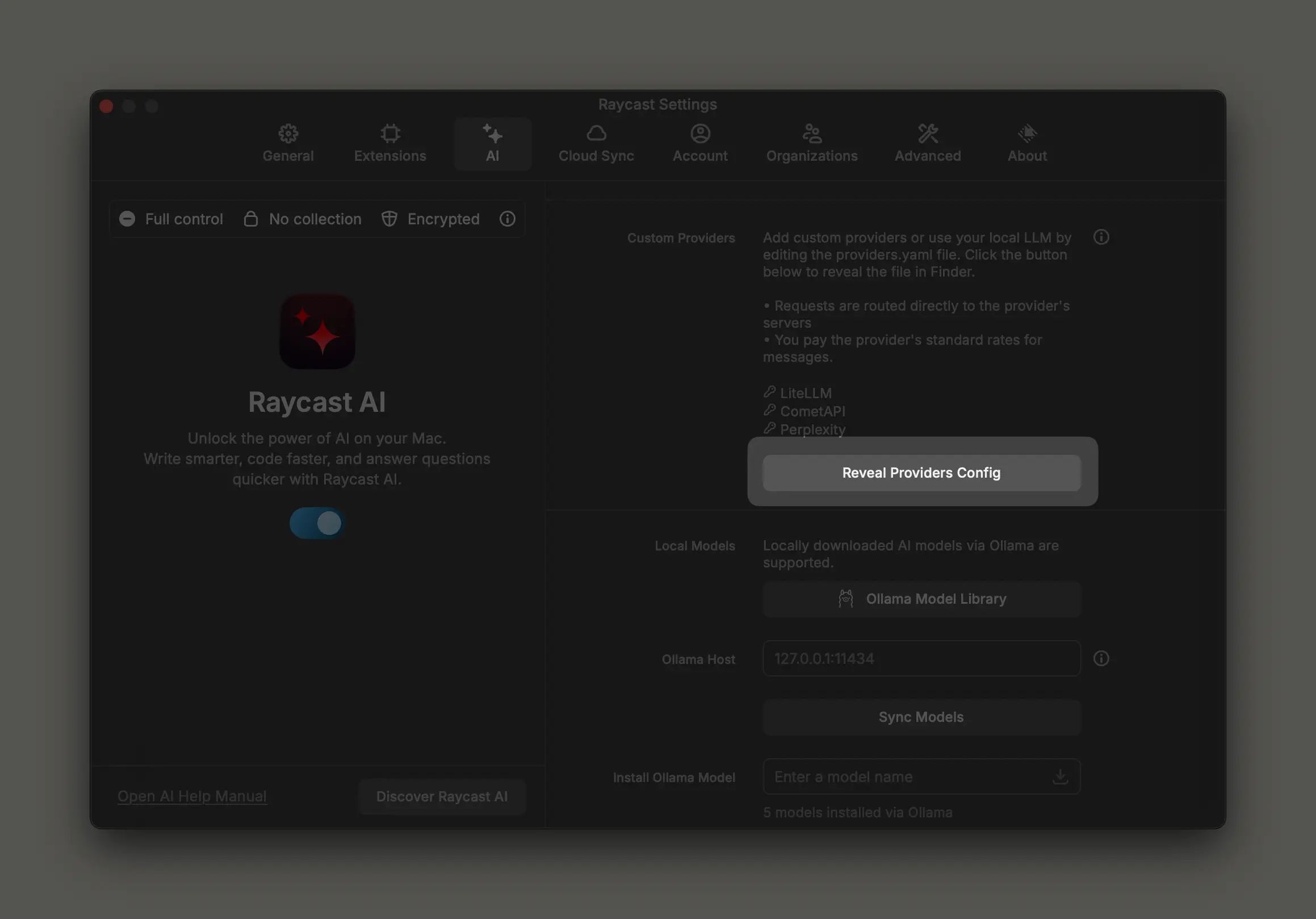
Preferences→AI. - Find “Custom Providers” (or “Custom OpenAI-compatible APIs”) and click Reveal Providers Config. Raycast will open Finder at the config directory and provide a template file (usually
providers.template.yaml) to copy and rename asproviders.yaml.

Step 3: Add a CometAPI provider to providers.yaml
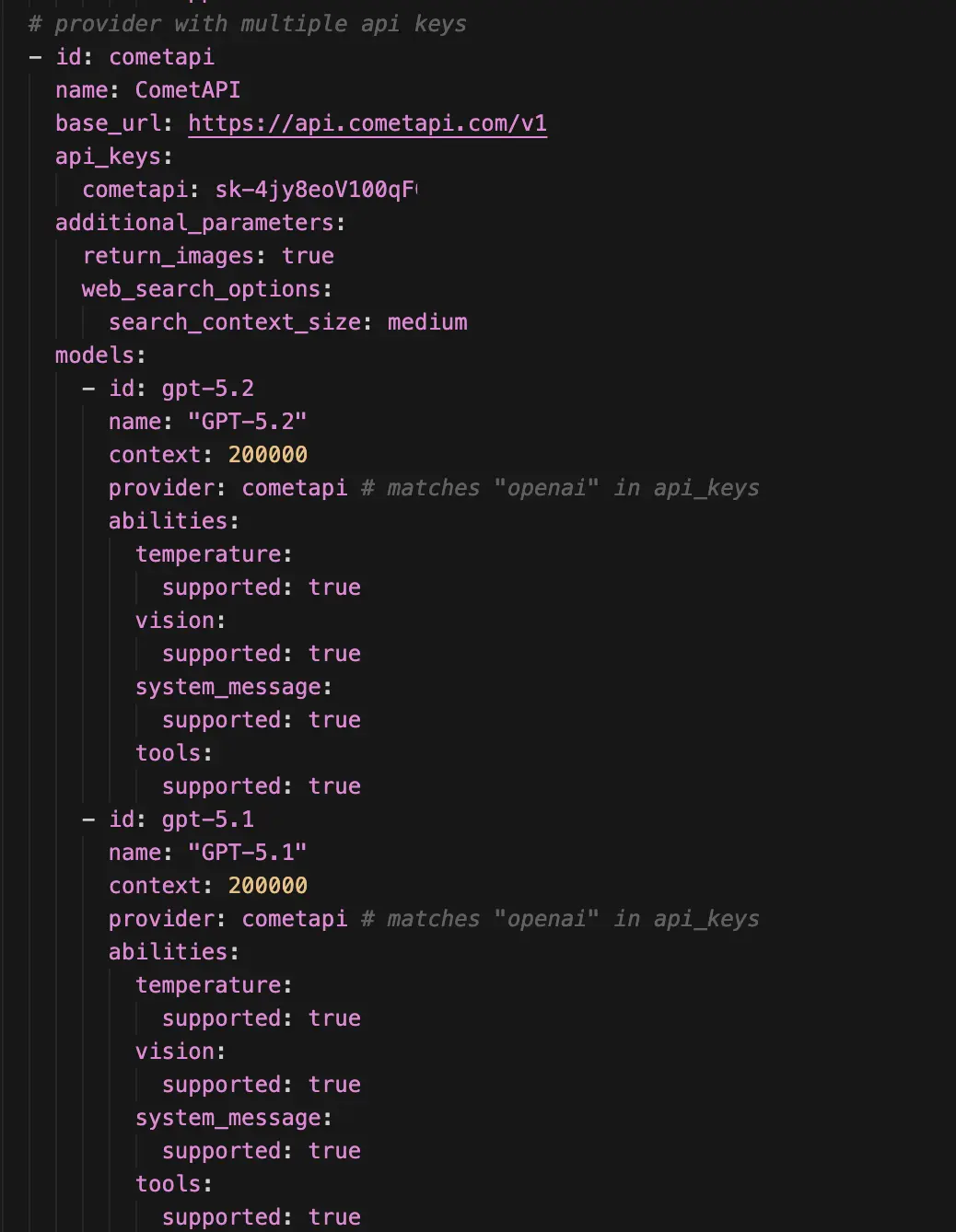
Create or edit the providers.yaml file. The exact schema Raycast expects can vary by version, but community templates and the Raycast manual show the common structure: a list of provider entries with id, name, base_url and an optional models block. Below is a safe, working example to register CometAPI as an OpenAI-co
Important notes
- Replace
YOUR_COMETAPI_KEYwith a secure reference — either paste the token (for personal use) or better: store in macOS Keychain / Raycast’s secure fields if supported. base_urlis the important line: point it tohttps://api.cometapi.com/v1. Raycast will use that base URL for OpenAI-compatible calls.- You don’t strictly need to pre-list all models — Raycast can fetch model lists from a properly implemented OpenAI-style
GET /v1/modelsendpoint if your provider exposes it. If CometAPI exposes a models list, Raycast can refresh and display the available models.
Step 4: Refresh models and test
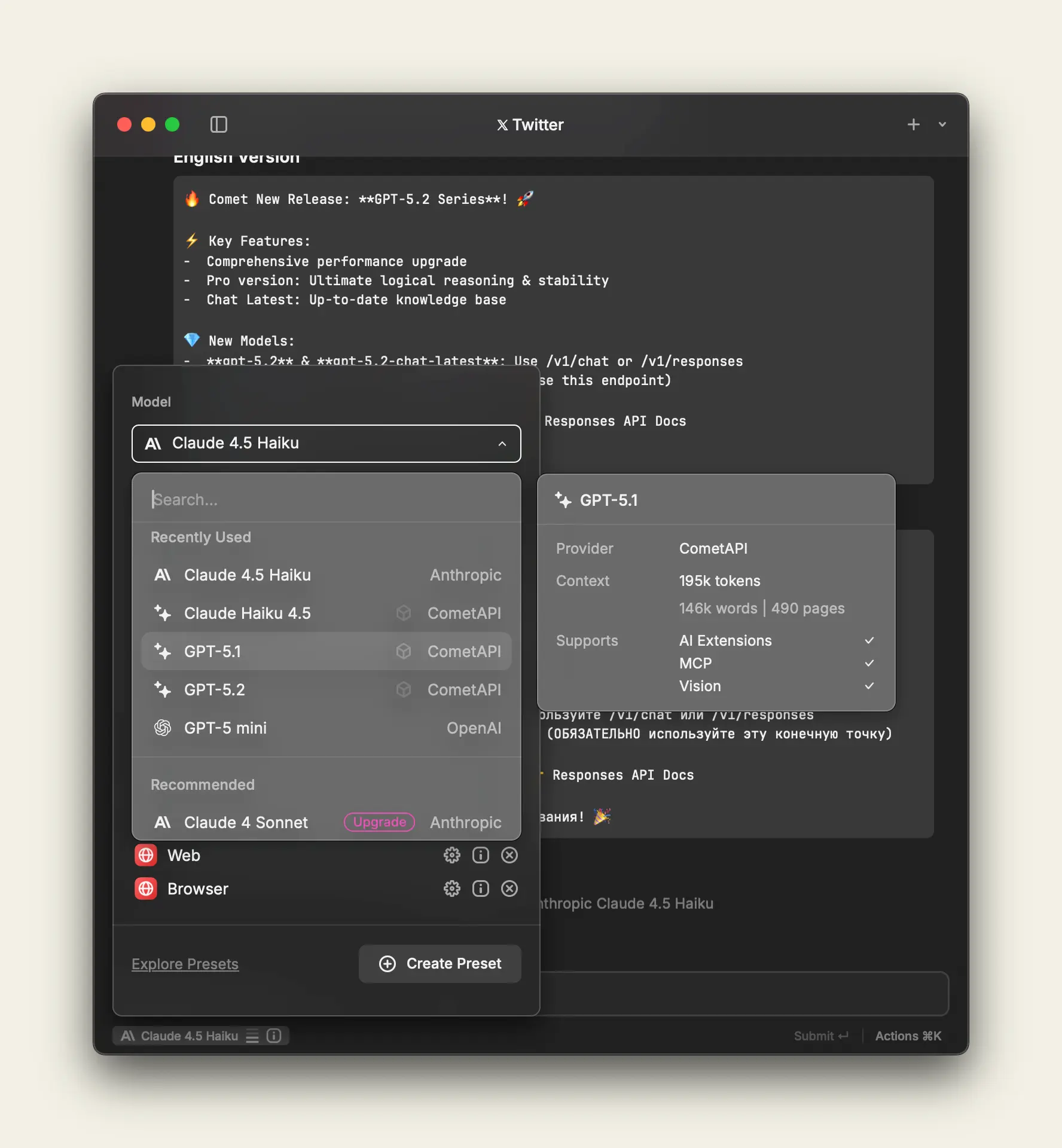
- Back in Raycast, you may need to restart the app or use a “Refresh Models” command (depending on version) so Raycast fetches models from the new provider and populates the model picker. I recommend refreshing or restarting if models don’t appear.
- Use a simple Quick AI prompt to pick CometAPI’s model from the model picker and run a test prompt.
Best practices when using CometAPI inside Raycast
Security best practices: Never hard-code tokens in shared providers.yaml. Prefer Raycast’s secure fields or macOS Keychain, or inject keys locally using environment variables if you’re using a local proxy. Read both CometAPI and Raycast privacy docs if you have sensitive data.
Reliability & performance: Test latency for the models you intend to use — gateway APIs can have variable routing. For interactive workflows (autosummaries, quick lookups) prefer smaller, faster models. For deeper reasoning tasks pick the higher-context models.
Cost control: Use model selection aggressively: choose lightweight models for short tasks, high-capacity models for heavy reasoning. Track usage on CometAPI’s dashboard and set budget alerts. Consider programmatic prompts to reduce token use (e.g., shorter system messages, efficient context management).
Prompt engineering & UX: When making Raycast AI Commands (duplicate a built-in command and tweak the prompt), keep prompts deterministic for utility commands (summarization, triage, search) and more open for ideation workflows. Copying built-in commands and customizing prompts as the recommended way.
How to troubleshoot common issues?
Models don’t show in Raycast: Ensure Raycast’s providers.yaml is in the exact folder revealed by Reveal Providers Config. Use the template as a baseline and restart Raycast. A restart or “Refresh Models” helps.
401 / invalid token: Confirm your CometAPI token is valid and not expired. Try the curl test above. Double-check that you used a Bearer token and that Authorization header is correct.
Model errors or incompatible response shapes: CometAPI aims to be OpenAI-compatible but some edge cases exist (model IDs, streaming behaviors). If Raycast expects a particular streaming format and CometAPI emits a slightly different shape, try a non-streaming call first and contact CometAPI support if necessary.
Conclusion
CometAPI gives you unified, multi-vendor access to many models (text, image, audio, video) and lets teams centralize billing and routing. Raycast gives you an instantaneous, keyboard-first place to call those models in the context of your desktop workflows. Together they make model experimentation and desktop automation frictionless — you can swap models for cost or quality, keep your keys local, and use the same familiar OpenAI-style patterns you already have in scripts and apps.
If you want to try right away, explore the models's(Gemini 3 Pro Preview API etc) capabilities of CometAPI in the Playground and consult the API guide for detailed instructions. Before accessing, please make sure you have logged in to CometAPI and obtained the API key. CometAPI offer a price far lower than the official price to help you integrate.
Ready to Go?→ use CometAPI in Raycast today !
If you want to know more tips, guides and news on AI follow us on VK, X and Discord!