
Developer experience with ChatGPT video analysis often hits a wall: direct YouTube links fail, and MP4 uploads return 'hallucinated' summaries that miss visual nuances. This isn't a bug—it’s an architectural constraint. ChatGPT does not stream video; it processes sequences of extracted frames and transcript text.So you tried uploading an MP4 file, which worked… sort of. The summary mentioned the audio transcript but completely missed the visual joke in the third scene that made the whole video make sense.
ChatGPT Can Analyze Videos — But Not by Actually Watching Them
Here's what's actually happening: ChatGPT doesn't "watch" videos the way you do. It doesn't hit play, stream the content, and observe motion over time. What it does is break video into components it already knows how to handle — still images and text transcripts — then reason about those pieces independently. The model sees your video as a photo album with narration, not as a continuous experience. That's why it caught the spoken explanation but missed the visual punchline: the frame with the joke probably wasn't in the sampled set.
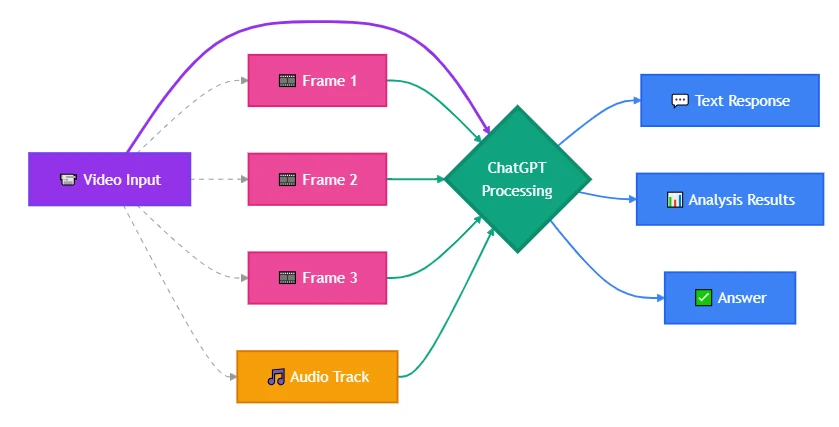
When someone asks "can ChatGPT watch videos," they're usually asking one of two questions: Can it stream visual content like a human observer would, or can it extract and analyze meaning from video data — scenes, dialogue, timestamps, on-screen actions? The functional answer is yes to the second question, with constraints that break certain use cases entirely. Modern ChatGPT variants process video by treating it as sampled frames combined with audio transcription, either through automated extraction in the web interface or by accepting user-provided frames via API. This works for summarization, scene description, and text extraction. It fails for motion tracking, timing-dependent analysis, or anything that requires the model to "see" what happens between frames.
Most guides stop at confirming the capability exists without explaining why your specific implementation didn't work — or which alternative input method would have.
ChatGPT Video Capabilities: What the Model Actually Sees
ChatGPT doesn't load an MP4 and scrub through it frame-by-frame. It has vision capability — the ability to analyze static images — and audio transcription through Whisper integration. When you submit video through the ChatGPT web or mobile interface, the system extracts keyframes, transcribes the audio separately, and feeds both to the model as distinct inputs. The model then describes what it "saw" in those frames and what it "heard" in the transcript.
From your perspective, it looks like video comprehension. From the model's perspective, it's image analysis plus text processing. That architectural distinction determines which use cases work and which don't.
If your video relies on motion, subtle frame-to-frame changes, or precise timing — like detecting exactly when an object enters the frame, or tracking how a UI element animates — a keyframe-based approach will miss it. ChatGPT won't catch a two-second visual cue that falls between sampled frames. It also won't track objects across time unless you explicitly structure the input to show progression.
Current ChatGPT video capabilities (as of early 2026):
- Image-based video analysis: Accepts video files or extracted frames; interprets visual content from sampled images
- Audio transcription: Converts spoken words to text via Whisper; model can then summarize or query the transcript
- Scene description: Identifies objects, actions, environments, and text visible in provided frames
- Timestamp-based queries: Can reference specific moments if you provide frame timestamps or manually segment the video
- Text extraction: Reads on-screen captions, UI labels, or documents visible in frames
Specific frame sampling rate and automatic keyframe selection behavior in ChatGPT web interface — not publicly documented as of knowledge cutoff
What it does not include:
- Real-time streaming video input through the API
- Frame-perfect motion tracking or object persistence across time
- Native support for video codecs — all processing happens on extracted frames and audio
- Automatic scene change detection without explicit user prompting
Video capacity is bounded by token limits and file size, not duration. While 5–10 minutes is a practical heuristic, actual limits scale dynamically with visual density.
If your use case requires those capabilities, you're either preprocessing the video yourself to extract the right frames, or switching to a model with native video support. The next section breaks down which input method to use for your specific scenario.
How ChatGPT Recognizes Videos: Three Practical Methods
There isn't one way to submit video to ChatGPT. The method you choose controls what the model can analyze and what it'll miss. Most implementation failures come from picking the convenient method instead of the correct one.
Method 1: Manual frame extraction + image upload
Extract frames yourself using ffmpeg or similar tools, then upload those specific frames as images. This gives you complete control over what ChatGPT analyzes.
Example workflow(bash):
# Extract one frame every 5 seconds from a video
ffmpeg -i input.mp4 -vf fps=1/5 frame_%04d.png

# Or extract frames only at scene changes

ffmpeg -i input.mp4 -vf "select='gt(scene,0.3)'" -vsync vfr frame_%04d.png
This approach lets you:
- Focus analysis on specific moments (intro, key action, conclusion) without wasting context on irrelevant sections
- Capture motion by uploading consecutive frames at your chosen sampling rate
- Work around file size limits — images are smaller than full video files
- Preserve frame quality that might degrade during automatic compression
The tradeoff:
You're handling preprocessing yourself. For analyzing hundreds of videos at scale, this requires automation. For one-off deep analysis or debugging specific scenes, it's the most reliable method.
When to use this method:
- You need frame-accurate analysis of specific moments
- The critical visual information is brief or occurs between typical keyframe intervals
- You're comparing visual changes across a sequence (UI state changes, animation frames)
- You want to verify what the model actually "saw" by inspecting the exact frames you uploaded
Method 2: Direct file upload via ChatGPT interface
The ChatGPT web app and mobile apps accept video uploads directly in the chat. Drop an MP4 or MOV file into the input field, and the system handles frame extraction and transcription automatically.
What happens internally:
- The service samples frames at intervals (specific rate not documented; estimated at 1-2 frames per second based on observed behavior)
- Audio is transcribed via Whisper or similar service
- Both outputs are passed to the model as separate context inputs
- The model generates responses based on visible frames and heard transcript
This method works for:
- High-level video summaries where you don't need frame-accurate detail
- Identifying key objects, people, or environments that persist across scenes
- Extracting spoken content or on-screen text that appears in multiple frames
- Quick exploratory analysis without preprocessing
This method fails for:
- Frame-accurate analysis — you don't control which frames get sampled
- For extended video content exceeding the model's comfortable context capacity, logical segmentation is required. Without strategic chunking or pre-processing, models may experience degradation or truncation as token consumption accelerates with high-density visual data
- Detecting motion, transitions, or timing-dependent content that requires consecutive frame comparison
- Scenarios where the critical visual information appears briefly between sampled frames
If you need control over which moments get analyzed, you're using Method 1.
Method 3: YouTube link + transcript retrieval
Some ChatGPT plugins and third-party tools claim to "analyze YouTube videos." What they actually do is fetch the video's public metadata and transcript (if available), then pass that text to ChatGPT.
This works when:
- The video has auto-generated or user-uploaded captions
- Your analysis only requires spoken content, not visual information
- The video is publicly accessible (not private, unlisted, or region-restricted)
- You're summarizing lectures, podcasts, or interviews where the audio carries most of the meaning
This doesn't work when:
- You need to analyze visual content (on-screen demonstrations, diagrams, facial expressions)
- The video lacks a transcript or captions
- Critical information appears visually without being mentioned in dialogue
- You're working with private video files or content behind authentication
Common mistake: Developers expect full video comprehension (visual + audio) but receive only a transcript summary. This is fine for content analysis of spoken material. It's useless for reviewing product demos, analyzing visual design, or any scenario where what you see matters more than what's said.
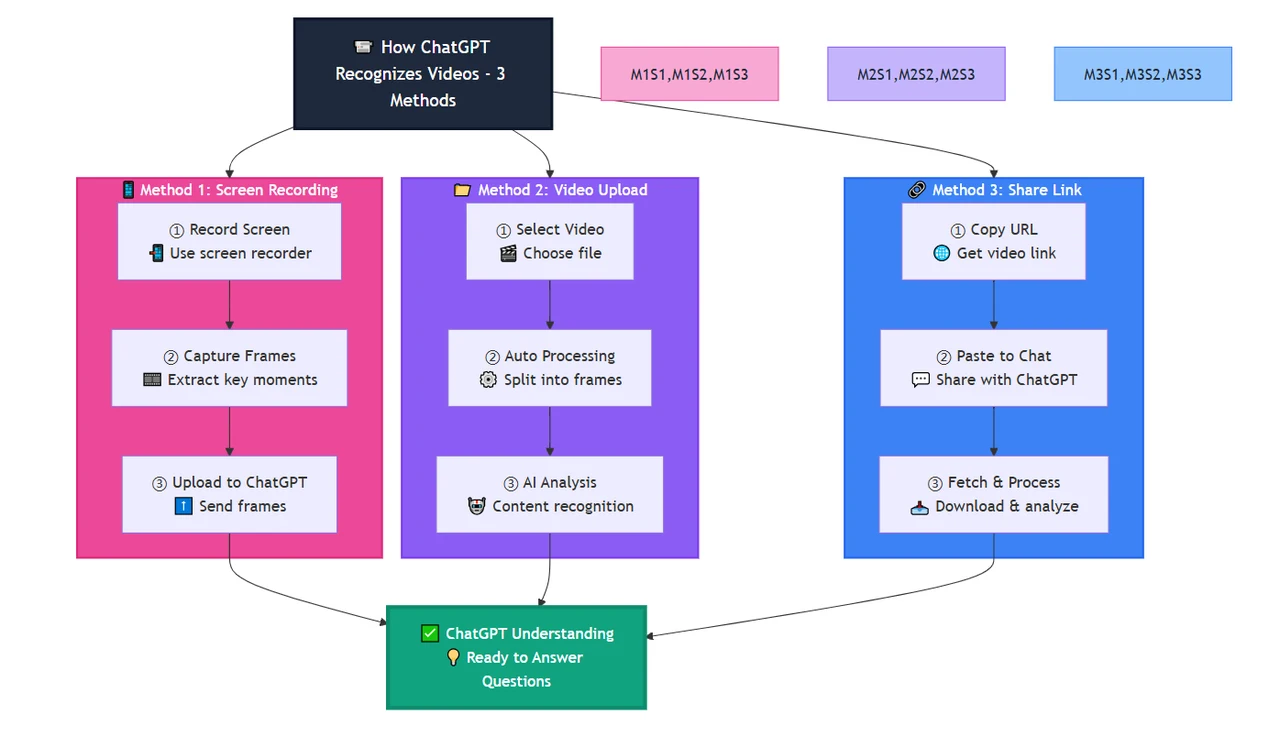
The pattern: Method 2 for quick summaries where precision doesn't matter. Method 1 for controlled analysis where you need specific frames. Method 3 for audio-focused content where visual information is secondary or nonexistent. Pick based on where your use case's critical information lives — in motion, in specific frames, or purely in dialogue.
ChatGPT Video Application Scenarios: What Actually Works in Production
Knowing ChatGPT can process video components doesn't tell you whether it's the right tool for your problem. These scenarios show where frame-based analysis succeeds — and where the architectural constraints break the use case.
Scenario 1: Educational content summarization
Use case: You have a 10-minute tutorial video and need a structured summary of key steps, tools mentioned, and visual examples shown.
Why it works: Educational videos typically have clear scene boundaries, persistent on-screen text, and narration that aligns with visuals. The speaker describes what they're showing while it's visible. ChatGPT can transcribe the explanation, identify tools or diagrams in sampled frames, and combine both into a structured output.
Implementation approach: Upload the video via ChatGPT interface or extract 8-12 keyframes at major topic transitions. Prompt: "List the main steps explained in this video, referencing both the narration and any on-screen text, diagrams, or tool names you see."
Where it breaks: Videos that rely on continuous motion — like a coding screencast where the instructor types quickly across multiple files — will have missing steps between frames. You'd need higher frame sampling rates or focus on the audio transcript alone.
Practical tip: For lecture or tutorial content, combine automatic upload (for the transcript) with manually extracted frames of the 3-5 most important visual moments. This gives you both comprehensive audio coverage and high-quality images of key concepts.
Scenario 2: Product demo analysis
Use case: You're reviewing a competitor's product demo and want to extract UI elements, feature names, user flows, and pricing details shown on screen.
Why it works: Product demos typically hold each screen long enough for frame sampling to capture static UI. Text overlays, button labels, menu structures, and pricing tables remain visible across multiple frames. ChatGPT's vision capability can read and describe these elements even if they're not mentioned in the narration.
Implementation approach: Extract frames at major scene changes (intro slide, feature 1 demo, feature 2 demo, pricing screen, CTA). Upload those frames and prompt: "For each frame, identify all visible UI elements, button labels, feature names, and any pricing or product information displayed."
Where it breaks: Demos with rapid screen transitions, hover states that reveal information briefly, or interactive elements shown for only 1-2 seconds won't be captured by frame sampling. If the competitor quickly flashes a feature comparison table, you'll miss it unless that exact moment was sampled.
Practical tip: Scrub through the video manually first to identify timestamps of important reveals. Extract frames at those specific moments rather than relying on automatic sampling intervals.
Scenario 3: Meeting or interview transcription with visual context
Use case: You recorded a client call and need both a transcript and annotations noting when specific documents, slides, or screen shares appeared.
Why it works: Audio transcription handles spoken dialogue. When participants share screens or hold up documents, those appear in sampled frames. ChatGPT can annotate "at approximately [timestamp], a contract document was visible on screen" alongside the transcript — useful for meeting minutes that reference visual materials.
Implementation approach: Upload the video and prompt: "Transcribe this meeting and note any moments where documents, presentation slides, shared screens, or other visual references appeared. For each visual element, describe what was shown."
Where it breaks: Brief screen shares (under 5-10 seconds) might fall between sampled frames. Text too small to read in compressed video frames won't be extractable. For legal or compliance use cases requiring verbatim accuracy of displayed documents, verify frame quality and sampling coverage before relying on the output.
Practical tip: For important meetings, record at higher resolution and extract frames manually at moments when someone says "let me show you this document" — indicating a visual reference is about to appear.
Scenario 4: Content moderation or compliance review
Use case: You need to scan user-uploaded videos for prohibited content — specific logos, text patterns, or visual elements that violate platform policies.
Why it works: ChatGPT can scan frames for visible text, recognizable objects, or described scenes. If you're checking "does any of these videos show a competitor's logo," frame-based analysis detects logos that persist on screen for more than a second or two.
Implementation approach: Extract frames at regular intervals (every 3-5 seconds), upload them, and prompt: "Review these frames and identify any that contain [specific logo, brand name, prohibited symbol, etc.]. For each match, describe where in the frame it appears."
Where it breaks: Audio-based violations (copyrighted music, prohibited speech) require separate audio analysis. Motion-based violations (prohibited gestures, actions spanning multiple frames) won't be caught by still frame analysis. Briefly flashed prohibited content might not appear in sampled frames.
Practical tip: Combine ChatGPT's visual scanning with dedicated audio fingerprinting services and higher frame sampling rates for high-risk content categories. Use ChatGPT as a first-pass filter, not the sole moderation layer.
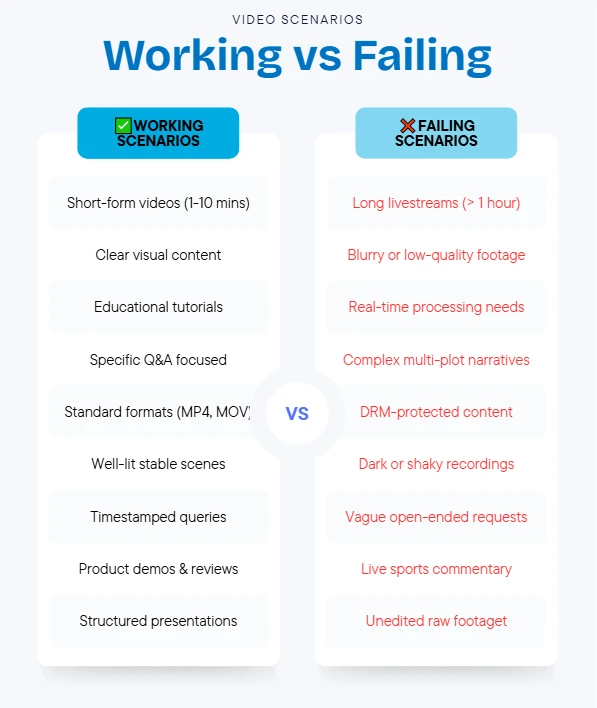
The pattern across successful scenarios: meaningful content exists in discrete, stable frames and correlates with audio or text elements. Failures occur when critical information lives in motion, timing, transitions, or appears too briefly to be reliably sampled.
Gemini Video Capabilities vs. Claude Video Capabilities vs. ChatGPT
If ChatGPT's frame-sampling architecture doesn't fit your use case, you're evaluating alternatives. Gemini and Claude offer different video-related capabilities — and those differences determine which model works for your specific implementation.
Gemini's native video processing
Gemini models support native video input at the API level. You pass a video file directly without preprocessing into frames. The model processes video as a continuous stream, enabling motion tracking, scene change detection, and temporal reasoning that ChatGPT's frame-based approach can't handle.
Example use case where Gemini wins:
You need to detect when a specific object enters and exits the frame across a 30-second clip, or track how a person moves through a scene. Gemini can follow objects across frames and reason about motion. ChatGPT would only see the object in whichever frames happened to get sampled — potentially missing the entrance or exit entirely.
Tradeoffs:
- Gemini’s native API is more cost-efficient than OpenAI’s frame-based sampling. By avoiding linear token overhead via context caching, Gemini scales better for long-form analysis.
- Processing longer videos incurs higher latency — the model must ingest the entire file before responding
- Not all Gemini variants support video input; requires Gemini later models
- Video length limits exist but are more generous than ChatGPT's context-based constraints
When to choose Gemini over ChatGPT:
- Your use case requires motion tracking, scene boundary detection, or understanding of temporal relationships
- Critical information appears and disappears quickly across frames
- You're analyzing videos where the progression of events matters (sports footage, surveillance review, animation analysis)
- You want to avoid manual frame extraction preprocessing
Claude's current video limitations
As of early 2026, Claude models do not support direct video input via API. You can upload images (including manually extracted video frames), but there's no native video processing capability comparable to Gemini.
What Claude can do:
- Analyze sequences of uploaded frames, similar to ChatGPT's manual extraction method (Method 2)
- Provide detailed descriptions of visual content in each frame
- Reason about implied motion or changes between frames if explicitly prompted
- Handle longer sequences of images due to extended context window (up to 1M tokens in Claude Opus 4.7)
What Claude cannot do:
- Accept video files directly through any interface
- Automatically track motion or objects across frames without explicit frame-by-frame prompting
- Transcribe audio — requires separate preprocessing with Whisper or similar service, then passing transcript to Claude
When you'd still choose Claude:
- Your workflow already includes frame extraction as a preprocessing step
- You're analyzing long videos requiring many frames and need Claude's larger context window
- You're comparing visual analysis quality and find Claude's frame descriptions more accurate or detailed for your domain (e.g., medical imaging, technical diagrams)
- You need to combine video frame analysis with large amounts of other contextual information
Capability comparison table
| Feature | ChatGPT | Gemini | Claude |
|---|---|---|---|
| Direct video file upload | ✓ (web/app interface) | ✓ (API + web interface) | ✗ |
| Native motion tracking | ✗ | ✓ | ✗ |
| Audio transcription | ✓ (Whisper integration) | ✓ (integrated) | ✗ (requires external tool) |
| Frame-based analysis | ✓ | ✓ (also continuous processing) | ✓ (manual extraction only) |
| Scene change detection | ✗ (manual only) | ✓ (automatic) | ✗ |
| Typical video length handling | ~5-10 min (context limited) | ~1 hour (resolution dependent) | N/A (frame count limited by context) |
| Best use case | Quick summaries, frame-level analysis with some control | Motion tracking, temporal reasoning, continuous video | Deep frame-by-frame description with large context needs |
| API video support | ✗ (images only) | ✓ | ✗ |
Decision framework:
- Choose ChatGPT when: You need quick video summaries, the critical information persists across multiple frames, you're working with short clips (under 10 minutes), and you don't need motion tracking. Best for educational content, static product demos, meeting transcription.
- Choose Gemini when: Your use case requires motion tracking, scene change detection, or temporal reasoning about how elements move or change across time. Critical for surveillance footage, sports analysis, animation review, or any scenario where "what happens between frames" matters.
- Choose Claude when: You're already extracting frames as part of your pipeline, need to analyze many frames with extensive additional context, or find Claude's vision descriptions more accurate for your specific visual domain. Requires most preprocessing work but offers the largest context window.
For developers working across multiple models, CometAPI provides a unified interface to test video processing quality across GPT, Gemini, and Claude variants without rewriting integration code — useful when you're comparing output quality before committing to a specific provider.
The real answer to "can ChatGPT watch videos" isn't binary. It's "yes, by converting video into formats it already handles — with limitations that break specific use cases." Most implementation failures come from architectural mismatches, not capability gaps. The model works exactly as designed; developers just expected a different design.
If you're building video analysis features at scale, test your workflow with edge cases first: upload the same video via direct file, manually extracted frames, and transcript-only methods. Compare outputs. The method that captures your use case's critical signal — not the one that's fastest to implement — is the one that survives production traffic.
Before committing to ChatGPT for video:
- Identify whether your critical information lives in stable frames, motion, or audio
- Test frame sampling coverage by manually extracting frames at your expected intervals
- Verify that on-screen text is readable at your video's resolution after compression
- Confirm your video length fits within practical context limits for your subscription tier
- Have a fallback for content that appears briefly or between sampled frames
For developers evaluating multiple AI providers for video workloads, CometAPI offers a unified playground to test ChatGPT, Gemini, and Claude with the same video inputs — letting you compare output quality, latency, and cost before building provider-specific integrations.
FAQ - AI Video Analysis Guide
Fast answers to common questions about AI video analysis.
Can ChatGPT analyze videos?
Yes, ChatGPT (GPT-4o and later) can analyze videos by sampling frames (~1 per second) and transcribing audio. It works well for meeting summaries, extracting text from slides, and identifying objects. However, it struggles with motion tracking, videos over 10 minutes, and real-time streaming.
How do I upload videos to ChatGPT?
Direct URL Upload (Recommended): Upload via a public URL for quick analysis. Best for videos under 10 minutes.
Manual Frame Extraction: Extract specific frames for precise control. Best when you need to analyze particular moments or reduce token costs.
What's the maximum video length ChatGPT can handle?
ChatGPT reliably handles videos up to 5-10 minutes. Beyond that, you'll need to segment the video or switch to Gemini 2.5 Pro, which supports videos up to 60 minutes natively.
What are ChatGPT's video analysis limitations?
- Cannot track continuous motion (sports, dance)
- Imprecise timestamps (±1 second accuracy)
- Misses content appearing for less than 1 second
- 10-minute practical limit
- No real-time streaming support
- Struggles with low-quality or dark videos
- Weak at temporal cause-and-effect reasoning *
Should I use ChatGPT or Gemini for video analysis?
Use ChatGPT for:
- Videos under 10 minutes
- Superior text reasoning after video analysis
- Frame-level analysis (slides, screenshots)
Use Gemini for:
- Videos 10-60 minutes long
- Motion tracking and movement analysis
- Temporal reasoning tasks
- Sports, dance, or surveillance footage *
Can Claude analyze videos?
No, Claude does not support direct video input. However, you can extract frames from videos and analyze them with Claude, which offers superior text reasoning and context window for long analyses.
How much does video analysis cost?
Costs vary by model and video length:
- ChatGPT 4o: ~$0.05 per minute
- Gemini 2.5 Pro: ~$0.04 per minute
CometAPI offers credit for new users to get started.