
TL;DR
TypingMind is a flexible AI chat interface that lets you connect GPT, Claude, DeepSeek, and other supported models using your own API keys. By integrating CometAPI through an OpenAI-compatible connection, you can access multiple AI models without configuring separate provider accounts. This guide explains how to add a custom model using your CometAPI API key and the Chat Completions endpoint, send your first message, and troubleshoot common setup errors. You’ll need a CometAPI API key, available account credit, and access to TypingMind’s custom model settings. Start with a basic text prompt, then enable advanced capabilities as needed. An optional Bash and cURL example is also included for testing the API connection.
Key Takeaways
- One API key, multiple models: access supported providers through one CometAPI account.
- OpenAI-compatible integration: configure a standard Chat Completions endpoint without a custom SDK.
- Flexible model selection: register multiple CometAPI-backed models in TypingMind.
- Separate billing: model inference is billed by CometAPI; TypingMind licensing is separate.
What is TypingMind
TypingMind is an AI chat interface that connects to models through API keys you provide. It gives you one place to select models and manage conversations. TypingMind provides the interface; the connected API service handles model requests and usage billing.
CometAPI gives TypingMind a shared API connection for supported models from multiple providers, including GPT, Claude, Gemini, and DeepSeek. You can manage API access and billing through one CometAPI account, then create separate custom model entries in TypingMind for the models you want to use. This makes it easier to try different models for writing, coding, or everyday questions without setting up a separate API account with each provider.
What Do You Need Before Connecting CometAPI to TypingMind?
Create a key through the CometAPI account’s API Keys section, following the key creation instructions. Use a dedicated key for this connection so you can revoke it without disrupting unrelated integrations. Keep the key out of screenshots, shared documents, and public repositories.
CometAPI supports multiple model families, including GPT, Claude, Gemini, and DeepSeek; it is not limited to GPT-6 Luna. This tutorial uses GPT-6 Luna (model ID: gpt-6-luna) only as an example for the configuration table and terminal test. You can choose a different model from the CometAPI model catalog, provided your account can access it and its route supports OpenAI Chat Completions.
When using another model, replace gpt-6-luna with that model’s exact ID in both TypingMind and the cURL request. Also update the display name, context length, pricing, and capability settings to match the selected model. The example model’s settings should not be assumed to apply to every model.
Use the configuration below. TypingMind needs the complete endpoint URL; an SDK base URL ending in /v1 is a different field and should not be substituted here.
| TypingMind field | Value |
|---|---|
| Name | GPT-6 Luna via CometAPI |
| Model ID | gpt-6-luna |
| API type | OpenAI Chat Completions API |
| Endpoint URL | https://api.cometapi.com/v1/chat/completions |
| Authentication | API Key via HTTP Header |
| Header key | Authorization |
| Header value | Bearer YOUR_COMETAPI_API_KEY |
How Do You Add CometAPI to TypingMind?
Create a custom model
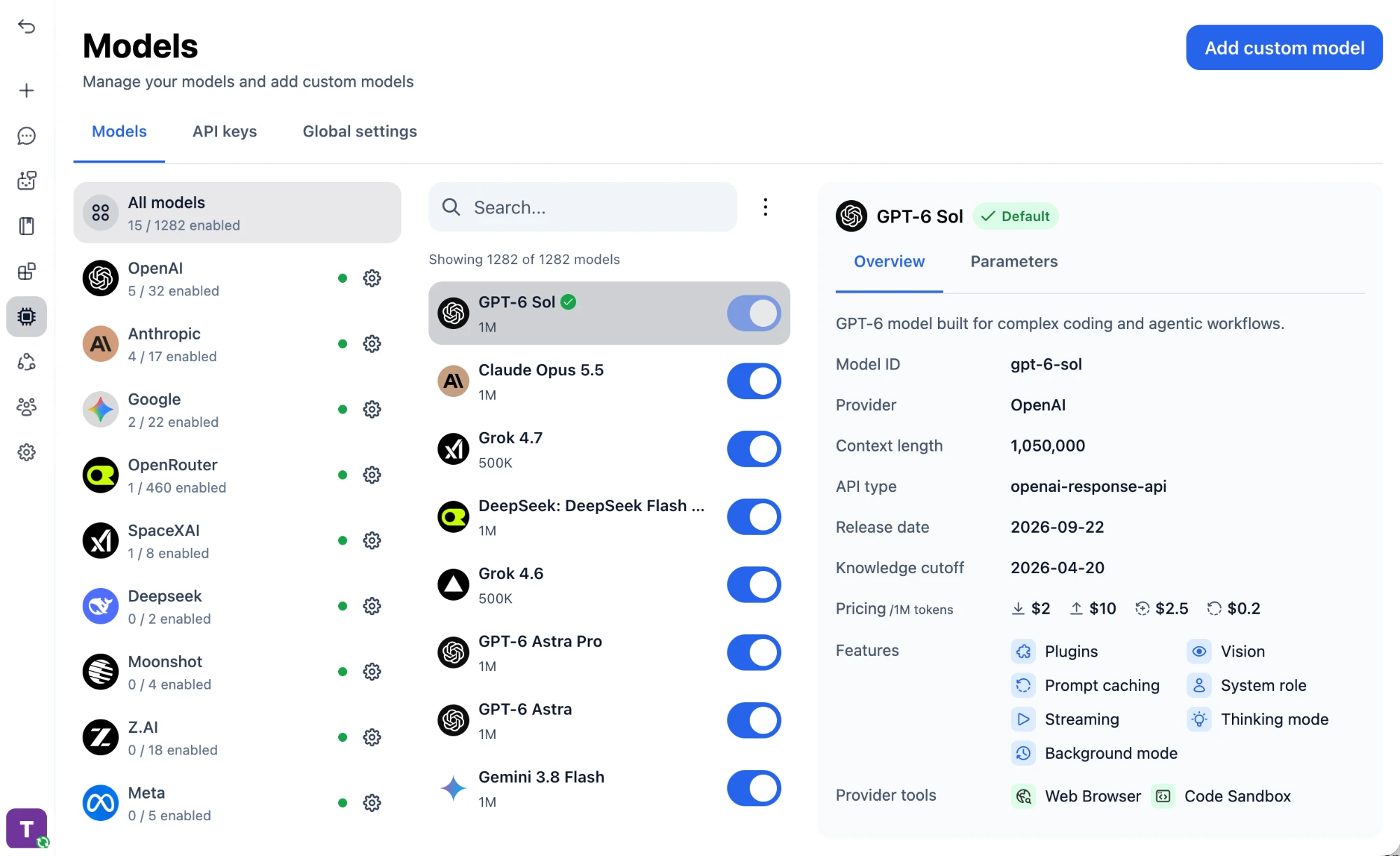
Open TypingMind, select Models, and choose Add custom model. Keep Create Manually selected. The manual configuration workflow documents these controls.
Enter the model details
Copy the name and model ID from the configuration table. If Context Length is required, use the selected model’s documented limit; GPT-6 Luna’s documented context window is 1,050,000 tokens. A context limit is a capacity setting, not a recommendation to send that many tokens.
Set the endpoint and authentication
In Authentication, enter the API type, endpoint, header key, and header value from the table. Replace YOUR_COMETAPI_API_KEY with your actual key. Include one space after Bearer and no quotation marks.
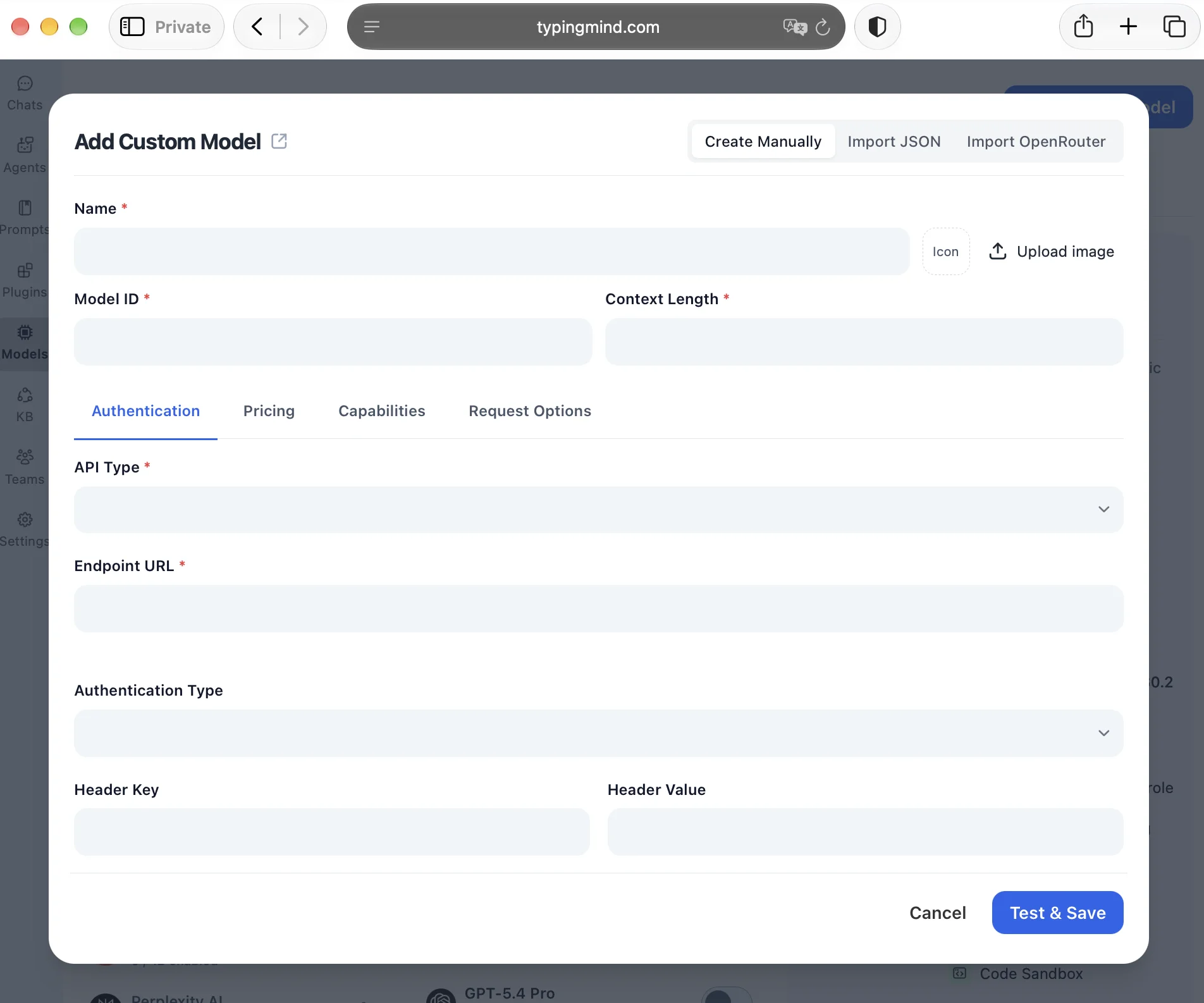
Both screenshots come from the official TypingMind guide. The empty authentication form illustrates field placement; enter your own CometAPI endpoint, model ID, and key.
Test and save the connection
Start with text chat and leave optional request overrides unset. Click Test & Save, select the saved model, and send: “Explain REST APIs versus WebSockets in three sentences.” A visible assistant reply confirms a basic connection. Send a follow-up to check that the conversation continues.
Enable optional capabilities
Start with text chat. Enable streaming, system prompts, image input, tools, or reasoning controls only when supported. Test advanced capabilities separately.
TypingMind’s Capabilities settings provide automatic checks and manual controls. Treat detection as a starting point: verify each feature with the selected model and route. Keep the working basic configuration so you can remove the latest override if a feature test fails.
How Do You Check the CometAPI Request Outside TypingMind?
Use this optional test when Test & Save fails. It sends a minimal request using the same key and model ID, following CometAPI’s documented Chat Completions request format. It does not require changing the TypingMind configuration.
Set the key for the current Bash session
Run the following in Bash, including Git Bash or WSL on Windows. Paste the key at the hidden prompt. These commands are Bash syntax and should not be pasted into PowerShell unchanged.
read -r -s -p "CometAPI API key: " COMETAPI_API_KEYprintf '\n'export COMETAPI_API_KEY
Send a minimal chat request
curl --include --silent --show-error \ https://api.cometapi.com/v1/chat/completions \ -H "Authorization: Bearer $COMETAPI_API_KEY" \ -H "Content-Type: application/json" \ -d '{ "model": "gpt-6-luna", "messages": [ {"role": "user", "content": "Explain API gateways in one sentence."} ] }'
Inspect choices[0].message.content for the assistant’s text. If cURL returns an HTTP error, read the response body before changing settings. If it succeeds while TypingMind fails, compare the endpoint, key, model ID, and optional overrides, then check the browser’s Network panel. A successful terminal request confirms that request path; it does not verify browser access or every model capability.
Remove the temporary environment variable
unset COMETAPI_API_KEY
How to Troubleshoot TypingMind Connection Errors
Use the response body and browser Network panel to identify the failing request. The checks below are starting points, not a diagnosis based on status code alone. Keep credentials out of screenshots and support messages.
| Symptom | First check | Next action |
|---|---|---|
| 401 Unauthorized | Key and Authorization header | Check for an expired or revoked key, extra spaces, or a missing Bearer prefix. |
| 403 Forbidden | Response body and model access | Confirm account permissions and access to the selected route. |
| 404 Not Found | Endpoint and exact model ID | Use the full /v1/chat/completions URL and confirm the ID in the catalog. |
| 400 Bad Request | Request body and overrides | Remove optional parameters and retry a plain text request. |
| 429 Too Many Requests | Quota or rate-limit error details | Check account limits and credit. Pause rate-limited retries; resolve exhausted quota before retrying. |
| Browser network error | Network panel and console | Check connectivity and any reported cross-origin error; compare with the terminal test. |
| Streaming fails | Streaming setting and route support | Retry with streaming disabled to isolate the failure. |
An API may work in Python or cURL but fail in a browser due to cross-origin restrictions. Do not expose an unrestricted API key through an insecure public proxy just to bypass CORS.
FAQ
Can I keep an existing TypingMind connection while adding CometAPI?
Yes: create a separate custom model entry with a distinctive display name rather than editing the existing provider entry. Keep the original endpoint and model settings available while you validate the CometAPI connection. Test first in a new chat so that an old conversation’s length or attachments do not obscure a basic setup error.
How should I rotate a CometAPI key used in TypingMind?
Create a replacement key, update every custom model entry that uses the old key, and test a new request from each entry. Revoke the old key after the replacement works. If the old key has been exposed, revoke it immediately and restore the affected connections with a new key.
Why can TypingMind’s cost estimate differ from the CometAPI bill?
TypingMind estimates usage from the rates entered in its Pricing settings. Stale rates or differences in cache, context-tier, or reasoning-token accounting can produce a mismatch. Compare the model’s current rates and a specific request’s usage with the CometAPI billing information; do not treat a client-side estimate as the final charge.
Conclusion
To connect CometAPI to TypingMind, create a manual custom model, enter the full Chat Completions endpoint, add the Authorization header, and test a plain text message. Keep one working configuration before adding optional features. When setup fails, a minimal cURL request helps distinguish account or API errors from browser and frontend settings.