TL;DR: Powered by OpenAI's Images 2.6, ChatGPT can now turn text prompts and uploaded images into animated GIFs, with controls for playback speed and individual frame editing. Developers can also access GPT Image 2.6 Flare and Sunburst through CometAPI to build image and GIF generation into their own creative tools.
Key Takeaways
Images 2.6 powers ChatGPT's GIF creation, allowing users to animate ideas from text prompts or uploaded images.
Clear, focused prompts provide a useful starting point. Describe one main action, identify what stays still, and explain how the animation should loop.
CometAPI now offers GPT Image 2.6 Flare and Sunburst, with Flare emphasizing speed and Sunburst emphasizing visual detail and editing consistency.
API integration supports custom creative workflows. Developers can connect generation to asset libraries and review processes, while implementing their own playback and editing controls.
Reviewed for clarity, source attribution and current API terminology.
A good GIF captures one small moment: a mascot's wave, a cat's celebration, or steam curling above a coffee cup. Creating that moment means deciding what moves, what stays still, and how the ending connects to the beginning.
With GPT Image 2.6, those creative choices become the starting point for a conversation in ChatGPT. This guide explores how to turn them into useful prompts, refine the resulting animation, and bring GIF generation into your own applications through CometAPI.
How Images 2.6 Powers ChatGPT's GIF Creation
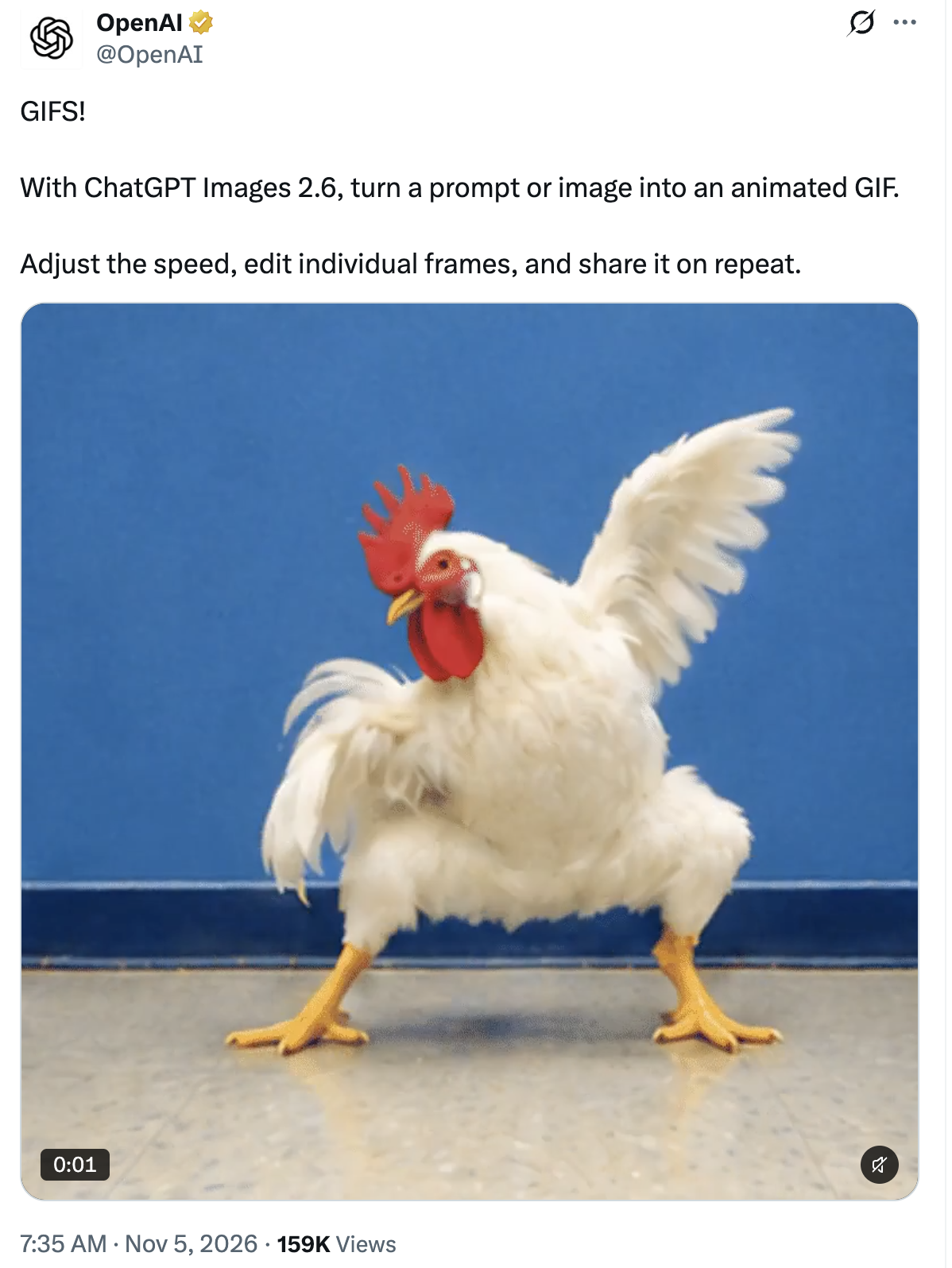
OpenAI explicitly connects the new animation feature to Images 2.6. In its official announcement on X, the company states: "With GPT Images 2.6, turn a prompt or image into an animated GIF."
GIF creation is part of the Images 2.6 experience, alongside improvements to image generation and editing. You can describe an animation in everyday language or start with an existing visual and explain how it should move.
For example, you might ask ChatGPT to create a small illustrated fox waving, animate steam rising from a coffee cup, or turn a sketch into a moving cartoon character.
The ability to revise the result matters as much as the initial generation. An animation might have the right appearance but move too quickly. A particular frame might need correction. ChatGPT's controls let users adjust speed and edit individual frames, making the process more approachable for people without animation experience.
For creators, the practical change is a shorter path from an idea to a shareable loop. You can describe the subject, inspect the movement, and refine the result within the same conversation.
What You Can Create with AI GIFs
For a short GIF, start with one clear visual action. A simple movement gives the viewer something easy to understand, even without surrounding explanation.
Social reactions and personal GIFs
Custom reaction GIFs can express something more specific than a stock animation. Instead of searching for a close match, you can describe the character, expression, and action you want.
Try a prompt such as:
Create a looping GIF of a fluffy orange cat doing a small celebratory dance. Use a clean cartoon style, a plain cream background, and a fixed camera. End with the cat returning to its starting pose.
The same approach works for birthday greetings, congratulations, playful reactions, or recurring characters used in a community.
Brand mascots and character content
A recognizable mascot can support several short animations: waving, nodding, celebrating, or looking surprised. These actions give teams a starting point for social posts, community content, and promotional messages.
For example:
Create a looping GIF of a friendly blue robot mascot waving one hand and blinking once. Keep its body shape, colors, and facial features consistent throughout. Use a fixed camera and a simple background.
When working from an uploaded character image in ChatGPT, specify which features should stay unchanged. That gives the animation a clearer visual target.
Product and marketing visuals
Small movements can add interest to a product scene. Steam can rise from a mug, a ribbon can flutter beside a gift box, or decorative elements can move around a stationary product.
A useful starting prompt is:
Create a looping GIF of a ceramic coffee cup on a wooden table. Animate only the steam rising gently above the cup. Keep the cup, table, lighting, and camera position unchanged.
Before publishing product GIFs, check product shapes, labels, and brand details across all frames.
How to Make a GIF in ChatGPT
Start by deciding whether the animation needs an existing visual reference.
If you are exploring a new idea, begin with a text prompt. Describe the subject, its action, the visual style, and the intended loop. A clear first request gives you something concrete to evaluate.
If you already have a photo, illustration, or sketch, upload it and describe the motion you want. Be specific about what should move and what should remain still. For example: "Animate the character's right hand waving while keeping the face, clothing, and background unchanged."
Once the GIF is generated, watch it through several repetitions. Check whether the action is readable, whether the subject changes unexpectedly, and whether the final frame connects comfortably to the first.
Then refine the result. Adjust playback speed if the movement feels rushed or slow, and inspect individual frames when something looks inconsistent.
If the animation looks inconsistent, simplify the movement or background, then review the result before making another change.
How to Write Better Prompts for Animated GIFs
A good GIF prompt describes both appearance and behavior. "Make this image move" leaves many decisions open. Clearer instructions help establish the intended action and the boundaries around it.
Choose one main action. Waving, blinking, swaying, or gently bouncing gives a short animation a clear purpose. Multiple scene changes and complicated interactions make a brief loop harder to control.
Describe what stays still. Specify a fixed camera and identify the elements that should remain unchanged.
Explain the loop. Ask the subject to return to its starting pose or describe a repeating movement. A smooth loop depends on how the animation ends as well as how it begins.
Compare these two prompts:
Make a penguin dance.

Create a looping GIF of a small cartoon penguin swaying gently from side to side. Keep its feet in place, use a fixed front-facing camera, and maintain the same character proportions. Return to the starting pose at the end.
The second prompt establishes a manageable motion, a stable viewpoint, and an intended ending.
Finally, review the output at its intended display size. A small animation may lose fine detail, and a subtle movement may become difficult to notice. Adjust the composition and timing for where the GIF will actually appear.
How to Create GIFs with CometAPI
Creating an animation in ChatGPT is a convenient way to explore an idea. A business or software team may then want to offer a similar creation workflow inside its own product.
A design platform might let users generate character animations from a short description. A marketing application might organize prompts and review options for campaign assets. An internal creative tool might connect generation requests to an approval process and an asset library.
These workflows need programmatic model access. They also need application features around generation: collecting user instructions, displaying results, saving assets, and handling revisions.
GPT Image 2.6 API on CometAPI now is availbale, giving developers a way to integrate the model family into their own creative workflows.
The two models serve different priorities:
Model
Main focus
Useful starting point
GPT Image 2.6 Flare
Faster generation and iteration
Interactive tools and rapid creative exploration
GPT Image 2.6 Sunburst
Detailed visual work and editing consistency
Assets that require closer attention to appearance and refinement
For a tool built around frequent experimentation, Flare is a practical starting point. For work that emphasizes detailed visuals and consistency during image editing, Sunburst is worth evaluating.
Compare both models using the same creative brief and relevant settings. Measure how quickly each produces an acceptable result, including any revisions needed. This helps you choose a model based on the complete workflow rather than generation speed alone.
For example, a team creating mascot content could evaluate whether the character remains recognizable, whether the movement communicates the intended expression, and how many attempts are needed to produce a usable asset.
Getting Started with GIF Generation Through an API
Begin by creating a CometAPI API key and choosing a model: gpt-image-2.6-flare or gpt-image-2.6-sunburst. CometAPI lists https://api.cometapi.com/v1/images/generations as its image-generation endpoint.
frame_count: Between 2 and 64 frames, with a default of 9.
frame_duration_ms: Between 20 and 2,000 milliseconds per frame, with a default of 200.
size: The dimensions of each frame, or auto.
The default timing of nine frames at 200 milliseconds produces a 1.8-second animation. Increasing frame count or dimensions also increases the output requirements, so start with a compact loop and adjust after reviewing it.
Confirm these parameters in CometAPI's current API documentation when integrating. Playback controls and frame editing belong to your application's interface and need to be implemented separately.
A useful first prototype is straightforward: accept a prompt, request an animation, display the returned GIF, and let the user revise the description. Add more controls after that basic workflow produces useful results.
As the tool develops, save the prompt and generation settings alongside each asset. That makes it easier to compare variations and understand which changes improved the result. A review step can then help users select the animation they want before adding it to a campaign or content library.
Conclusion
Images 2.6 makes custom GIF creation more accessible by connecting natural-language instructions with animation generation and refinement in ChatGPT. A simple action—one wave, one blink, or one repeating movement—provides a practical place to begin.
For developers, the next opportunity is to turn that creative process into a useful product workflow. With Flare and Sunburst now available through CometAPI, teams can evaluate GPT Image 2.6 and build generation features around their own users, assets, and review processes.
Get started with GPT Image 2.6 on CometAPI to choose a model and plan your integration.