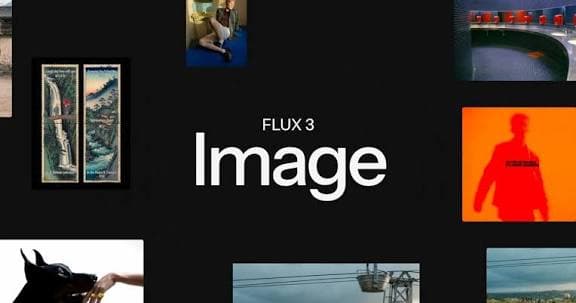
Build product photographs, posters, and reference-based edits with FLUX 3 Image, available through CometAPI as flux-3-image, with pricing from $0.0384 per request. This guide walks you through choosing image settings, preparing a request, handling an asynchronous job, and reviewing the finished image. You will need a CometAPI account, an API key, and the FLUX 3 Image request configuration supplied for your account.
Key Takeaways
Choose text-to-image for new compositions and reference-guided editing when a product or subject must remain recognizable.
Use a small draft to review composition before spending on a larger final image.
Use CometAPI credentials and its model-specific request schema; BFL-native keys and examples belong to a separate integration.
Estimate costs from the applicable CometAPI rate, then measure spend per accepted deliverable.
Reviewed for clarity, source attribution and current API terminology.
Complete one submission, result retrieval, download, and visual review before running a batch.
What Is FLUX 3 Image API?
FLUX 3 Image is Black Forest Labs’ model for creating and revising still images. A text prompt describes a new scene; reference images provide visual material to preserve, combine, or change. For an e-commerce team, that can mean developing a product scene from a brief, then reusing an approved product photo while changing its surroundings.
Choose a workflow before writing the prompt. For a new visual, specify the subject, setting, lighting, and framing. For an edit, identify the source image, name the change, and state which details must remain intact. For a composition using several references, assign each one a role so that product identity and visual style do not compete.
FLUX 3 Image Specifications and API Parameters
Plan your image with the settings below. Model controls follow the BFL FLUX 3 Image API reference; authentication and request routing follow your CometAPI integration. Use the field names accepted by your CometAPI FLUX 3 Image route.
Capability / setting
What it controls
How to use it with CometAPI
Model identity
FLUX 3 Image; catalog ID flux-3-image
Use the model-specific route and routing convention in your account example.
Generation / prompt
The scene, composition, or edit instruction
Start with one clear subject and one intended output.
Reference images / native images
An ordered list of 1–10 reference images, supplied as HTTP(S) URLs or base64 in the native API.
Confirm the gateway’s field name, input format, and reference limit.
Aspect ratio / native aspect_ratio
Canvas proportions. With auto, a ratio requested in the prompt takes priority; otherwise edits retain the first reference’s framing.
Choose a ratio for the delivery format and confirm accepted values.
Resolution / native resolution
Native tiers: 768sq, 1k (default), 1.5k, 2k, and 4k. Exact dimensions depend on the aspect ratio.
For edits, match_input preserves the first reference’s size, reduced to 4 MP if larger; an explicit aspect_ratio selects its nearest tier. Explicit width and height take priority.
Exact dimensions / width + height
Supply both integers, each 256–6256 pixels. They override resolution and aspect_ratio. Total area is limited to 16,822,272 pixels, or 4,194,304 pixels when reference images are used.
Use explicit dimensions for a fixed delivery size, such as 1024 × 1280. Confirm that your CometAPI route accepts these native controls.
Layout control
Bounding-box guidance for element placement
Use the documented layout syntax when exact placement matters.
Targeted edits
Changes to selected subjects or regions
Compare the source and result in areas that should remain unchanged.
Choose dimensions in one of three ways: a resolution tier plus aspect ratio, width plus height for an exact canvas, or match_input for an edit. Keep the original reference available so you can compare framing and detail after generation. The native endpoint rejects unsupported fields; use the schema for the route you are calling.
FLUX.2 vs FLUX 3 Image
Dimension
FLUX 2 MAX / FLUX 2 PRO
FLUX 3 Image
Practical assessment
Use case
Strong text-to-image/editing, family variants
Detailed image composition and pixel-preserving edits
Compare the same brand prompts
Resolution
Variant-dependent high-resolution generation
Explicit 2K/4K native showcase
Inspect fine details at full zoom
Editing
Multi-reference capabilities in select variants
Localized edit demonstrations
Measure unedited-area drift
Cost
Varies by variant and platform
CometAPI pricing for the selected configuration
Compare per accepted image
CometAPI access
Available through CometAPI as FLUX 2 PRO and FLUX 2 MAX
Available through CometAPI as flux-3-image
Validate the model-specific request before changing production routing
Evaluation
Use the exact variant deployed today
Run the same prompt and reference set
Compare accepted outputs and total workflow cost
Keep your current FLUX.2 integration as a comparison baseline while evaluating FLUX 3 Image. Run the same briefs and reference assets through both workflows, then compare accepted outputs, turnaround time, and total cost.
How Do You Generate an Image with FLUX 3 Image API in CometAPI?
POST https://api.cometapi.com/flux/v1/flux-3-image
Authentication uses a Bearer token (CometAPI style). Requests are asynchronous by default.
3. Basic text-to-image example (cURL)
curl https://api.cometapi.com/flux/v1/flux-3-image \
  -H "Authorization: Bearer $COMETAPI_KEY" \
  -H "Content-Type: application/json" \
  -d '{
    "prompt": "Ultra-wide cinematic shot of a fog-drenched coastal highway at dawn, cliffs on one side, turquoise sea on the other, a single vintage car with headlights on, soft golden rim light",
    "aspect_ratio": "21:9",
    "resolution": "1k"
  }'
Poll until status is "Ready". The image URL appears in result.sample (download it promptly; signed URLs are temporary).
For a synchronous wait in the same request, add "async": false to the body (keep the connection open; use a generous client timeout).
5. Python example (submit + poll)
import os
import time
import requests

API_KEY = os.environ["COMETAPI_KEY"]
BASE = "https://api.cometapi.com/flux/v1"

def generate_image(payload, name="flux3_image"):
    # Submit
    r = requests.post(
        f"{BASE}/flux-3-image",
        headers={
            "Authorization": f"Bearer {API_KEY}",
            "Content-Type": "application/json",
        },
        json=payload,
        timeout=60,
    )
    r.raise_for_status()
    task = r.json()
    task_id = task["id"]

    # Poll
    while True:
        time.sleep(1.5)
        result = requests.get(
            f"{BASE}/get_result",
            params={"id": task_id},
            headers={"Authorization": f"Bearer {API_KEY}"},
            timeout=60,
        ).json()
        status = result.get("status")
        if status not in ("Pending", "Reasoning", "Generating"):
            break

    if status != "Ready":
        raise RuntimeError(result)

    # Download
    img_url = result["result"]["sample"]
    img = requests.get(img_url, timeout=120)
    with open(f"{name}.png", "wb") as f:
        f.write(img.content)
    return f"{name}.png"

# Example call
generate_image({
    "prompt": "A two-color risograph narrative illustration... a rabbit rides a pumpkin...",
    "aspect_ratio": "16:9",
    "resolution": "1k",
})
FLUX 3 Image supports pure text-to-image and editing/multi-reference in the same endpoint—just include images and describe how to use them in the prompt (no separate “mode” field).
Alternative: OpenAI-compatible route
You can also try the unified images endpoint with the model ID:
POST https://api.cometapi.com/v1/images/generations
(Native `/flux/v1/...` is preferred for full FLUX 3 parameters.)

### Tips

* Check current availability and exact pricing on the [CometAPI Flux 3 Image model page](https://www.cometapi.com/models/flux/flux-3-image/).
* Always download the `result.sample` URL quickly.
* For the latest parameter list or playground examples, see CometAPI’s Flux docs and Black Forest Labs’ official FLUX 3 Image reference.


This mirrors the official BFL flow while using CometAPI’s authentication and unified infrastructure.

## How to Prompt FLUX 3 Image? Examples

### Example: Product Photography Prompt

Use this prompt for a first product-photography test.
A premium amber perfume bottle centered on matte limestone,
three-quarter product perspective, exact bottle silhouette,
softbox key light camera-left, detailed contact shadow,
subtle natural reflections, beige seamless studio backdrop,
no extra bottles, no watermark, no altered brand lettering.
Output: clean 4:5 e-commerce hero creative.
Replace the prompt value in request.json with this brief, keeping the request body expected by your CometAPI route. A 4:5 canvas suits a portrait product placement. If your route accepts the native dimension controls, 1024 × 1280 is an exact 4:5 option; supply both values together.

Begin with a small draft and check the bottle silhouette, label, reflections, and extra objects. If the exact product identity matters, use a product reference instead of expecting a text-only prompt to reconstruct it. Record the prompt and output settings before making changes.

### Example: Typography and Poster Layout

Poster prompt with explicitly specified title text.
An editorial art poster on warm off-white paper.
Title text exactly: THE SEED PARADE.
Three stylized walking seed characters below the title.
Two-color risograph-inspired printing, generous margins,
balanced hierarchy, crisp legible typography, portrait format.
Use this brief as the prompt in your CometAPI request and choose a portrait canvas. Start with a draft to check the headline position and character arrangement, then increase the output size for the final artwork.

Treat letter accuracy as a measurable acceptance condition. Review every letter and punctuation mark in the final-resolution output; impressive gallery images do not guarantee zero errors on your specific brand text.

## How to Edit Images with References

For an edit, describe both the change you want and the details to preserve. The native FLUX 3 Image API takes references in images; map them to the corresponding input field in your CometAPI example. Put the product reference first and keep that order consistent in the prompt.

### Single-Image Editing: Change the Background, Preserve the Product

Keep edit.py beside submit.py, poll.py, and download.py. Set PRODUCT\_IMAGE\_URL to a publicly accessible HTTPS product photo, then run python edit.py. The example below requires a route that accepts the native images array. Use an editing request body with no conflicting source-image fields, and change the mapping if your CometAPI example uses a different input field. To resume a saved editing task, run python poll\_download.py editing-task.json.
import json
import os
from pathlib import Path
from submit import submit
from poll import wait_for_image
from download import download_image
This request variant requires a route accepting the native images array.
payload = json.loads(Path("request.json").read_text(encoding="utf-8"))
payload["images"] = [os.environ["PRODUCT_IMAGE_URL"]]
payload["prompt"] = (
"Use image 1 as the authoritative product reference. "
"Replace only the studio background with pale limestone and warm "
"morning window light. Preserve bottle shape, cap, label text, logo "
"position, and product color. Do not crop the product or add objects."
)
task_id = submit(payload, "editing-task.json")
image_url = wait_for_image(task_id)
print(download_image(image_url, "edited-product"))
Choose a sharp product photo with a readable label and a clear silhouette. Submit it in the image-input format accepted by your CometAPI route. If that route supports the native resolution setting, use match\_input to retain the reference framing and size subject to the model’s editing limits.
The [BFL gallery](https://bfl.ai/models/flux-3-image) demonstrates a localized edit by adding two divers. These official before-and-after assets illustrate what to inspect; they are not outputs from a CometAPI request run for this article.

BFL official editing example, before: the original underwater scene with one diver.

BFL official editing example, after: two divers are added to the scene. Inspect the unchanged background as well as the new subjects.
### Multi-Image Reference Editing: Combine Style and Product Identity
Keep the product first and the lighting/style reference second. Set PRODUCT\_IMAGE\_URL and STYLE\_IMAGE\_URL, save the code below as multi\_edit.py beside the three client files, and run python multi\_edit.py. This example requires a route that accepts at least two references in images. Start with an editing request body without conflicting source-image fields. Resume a saved job with python poll\_download.py multi-edit-task.json.
import json
import os
from pathlib import Path
from submit import submit
from poll import wait_for_image
from download import download_image
Preserve this order: product first, lighting/style second.
payload = json.loads(Path("request.json").read_text(encoding="utf-8"))
payload["images"] = [
os.environ["PRODUCT_IMAGE_URL"],
os.environ["STYLE_IMAGE_URL"],
]
payload["prompt"] = (
"Image 1 defines product identity. Image 2 defines lighting and color. "
"Create one promotional image with the exact product from image 1 "
"and the lighting mood of image 2. Preserve product lettering and "
"geometry. Do not copy logos, text, or extra objects from image 2."
)
task_id = submit(payload, "multi-edit-task.json")
print(download_image(wait_for_image(task_id), "multi-edited-product"))
Attach both references using the model-specific CometAPI format. First review whether the product retained its identity; then assess whether the second reference contributed the intended light and color. If it also introduces unwanted objects or lettering, simplify that reference or make the prompt more explicit.

## How to Use Bounding Boxes for Layout Control

Use boxes when the bottle and headline must occupy predictable regions. Write a scene caption with an ID for each element, then append a JSON array to prompt. BFL’s format uses bbox in \[top, left, bottom, right] order on a 0–1000 grid; boxes belong inside the prompt, not in a separate API field.

The example below reserves space for a headline above the bottle. Keep a portrait output setting in request.json and save this file as layout.py beside submit.py. Run python layout.py, then python poll\_download.py layout-task.json. Use a route that supports this layout syntax; inspect the result to check whether the bottle and headline occupy the intended regions.
import json
from pathlib import Path
from submit import submit
caption = (
"A portrait perfume advertisement: an amber bottle <bottle_1> "
"below a headline <title_1>, on a warm beige background."
)
elements = [
{"id": "title_1", "bbox": [80, 120, 220, 880],
"desc": "Dark brown text reading AMBER, centered"},
{"id": "bottle_1", "bbox": [300, 300, 880, 700],
"desc": "One amber glass perfume bottle with a black cap"},
]
payload = json.loads(Path("request.json").read_text(encoding="utf-8"))
payload["prompt"] = caption + " " + json.dumps(elements)
print(submit(payload, "layout-task.json"))
Keep the aspect ratio consistent with the layout. Boxes guide placement rather than clipping an object to a hard boundary. Inspect headline spelling and spacing in the saved image; add final brand lettering in a design tool when exact typography is essential.

## How Much Does FLUX 3 Image API Cost?

CometAPI offers FLUX 3 Image from [$0.0384 per request](https://www.cometapi.com/models/flux/flux-3-image/) (November 9, 2026). Use this starting rate for an initial budget, then apply the rate shown for your selected configuration. The examples below assume every billed request uses the starting rate.

| Billed requests | Assumed rate / request | Illustrative cost |
| --------------- | ---------------------- | ----------------- |
| 1               | $0.0384                | $0.0384           |
| 10              | $0.0384                | $0.3840           |
| 100             | $0.0384                | $3.84             |
| 1000            | $0.0384                | $38.40            |

Check the rate for your selected configuration and account before committing a batch. The public starting price does not establish the price of every resolution or editing option. Track rejected creative attempts as well as approved outputs: if you spend $3.84 on 100 billed requests and approve 80 deliverables, the API cost per accepted deliverable is $0.048, before human review and storage. This is an illustrative calculation, not a measured acceptance rate.

### Resolution Choices by Workflow

| Workflow                      | First test                                       | Approval check                                    |
| ----------------------------- | ------------------------------------------------ | ------------------------------------------------- |
| Prompt exploration            | Smallest useful supported tier                   | Composition and subject placement                 |
| E-commerce product images     | A draft with the intended crop                   | Product geometry, labels, and edge detail         |
| Campaign or editorial artwork | Draft first; larger output after layout approval | Typography and detail at delivery size            |
| Reference-based edits         | A supported setting suited to the source         | Unchanged regions, product identity, and lighting |

## When Should You Use FLUX 3 Video Instead?

Use FLUX 3 Image for still assets such as a product hero image, poster, or campaign frame. If the deliverable needs motion, look at [FLUX 3 Video on CometAPI](https://www.cometapi.com/models/flux/flux-3/), listed under the separate model ID flux-3. Its [video workflow](https://apidoc.cometapi.com/api/video/flux-3/create) uses video-specific settings and billing. Keep image and video requests separate; duration, audio, and video-frame controls do not belong in a still-image request.

For a campaign with both formats, approve the still-image composition first, then prepare the motion brief separately. Check the video model’s reference-input requirements before reusing an approved image as source material.

## Conclusion

Start with one product brief and one small image job. Submit it through your CometAPI FLUX 3 Image route, save the task ID, retrieve the completed image, and review the result before scaling up. Use width and height when you need an exact canvas, or match\_input for a reference edit where supported. Compare total spend with the number of images you approve so your budget reflects usable results.

## SEO Metadata

Meta title: FLUX 3 Image API Guide: Generation, Editing & CometAPI

Meta description: Use FLUX 3 Image on CometAPI for generation and editing. Learn image parameters, asynchronous job handling, prompt examples, and pricing from $0.0384 per request.

Keywords: FLUX 3 Image API, CometAPI FLUX 3 Image, FLUX 3 image editing, FLUX 3 pricing, reference image generation, FLUX.2 migration

URL slug: flux-3-image-api-guide
Authentication
CometAPI API key for gateway requests
Follow the authentication headers in the CometAPI example; keep the key on the server.
Result handling
Asynchronous generation: submit a job, track its task ID, and retrieve the finished image.
Use the Python template below when your account route follows the documented CometAPI FLUX task contract.
Pricing
CometAPI pricing starts at $0.0384 per request (November 9, 2026).
Use the price section below for an illustrative budget; verify the selected configuration.
Extra fields
Native and gateway schemas differ across model generations
Native FLUX 3 Image accepts width and height. Do not reuse seed or input_image from an older model; use images for native reference inputs and follow the gateway schema for CometAPI.