How to edit videos via veo 3.1
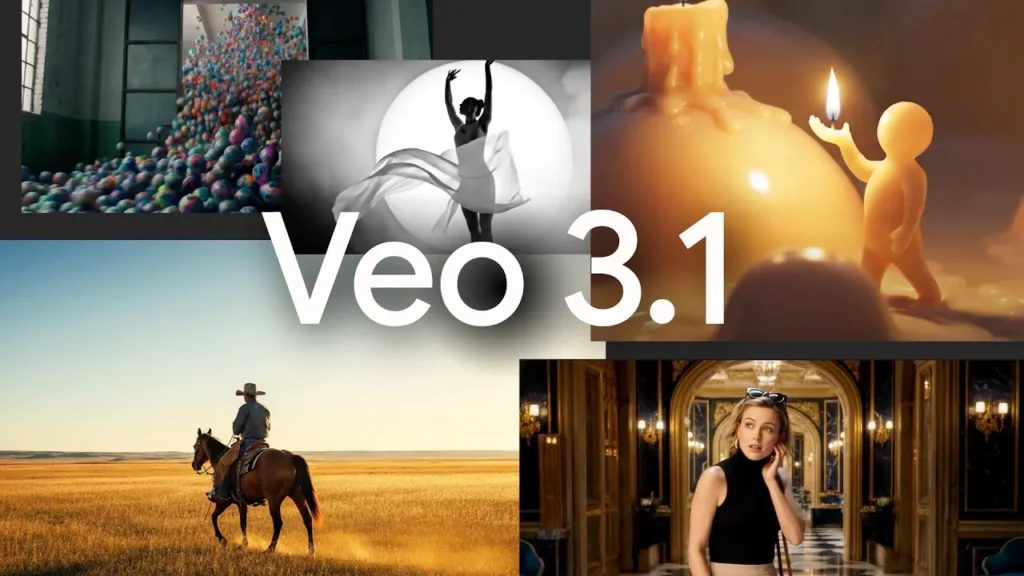
Google publicly introduced Veo 3.1 (and a Veo 3.1 Fast variant) in mid-October 2025 as an improved text-to-video model that produces higher-fidelity short clips with native audio, better prompt adherence, and new editing capabilities such as scene/clip extension, frame-to-frame interpolation, and image-guided generation (use up to three reference images). Veo 3.1 is available via the API, appears in the Gemini app and Flow creative tool, and is exposed to enterprise developers through Vertex AI and Google AI Studio (availability varies by platform and plan). Flow’s integration brings more UI editing controls (lighting/shadows, object insert/remove coming soon), while the APIs expose programmatic generation and extension features for developers.
I will provide a guide on how to edit videos via Veo 3.1 (Flow, CometAPI/Gemini API — step-by-step).
What does Veo 3.1 do and where did it come from?
Veo 3.1 is the latest iteration of Google’s family of generative video models (Veo), built to turn text prompts — and optionally images or existing video frames — into short, coherent, photoreal or stylized video clips with synthesized audio (dialogue, ambient sounds, SFX). The 3.1 update emphasizes better realism, richer native audio, and tools for continuity (scene extension and frame interpolation), positioning Veo as a video-centric counterpart to Google’s text and image models.
Key upgrades in 3.1 include:
- Native audio and dialogue synthesis for generated clips (no separate voice pipeline needed).
- Frame-to-frame interpolation (first & last frame driving a generated clip).
- Image-guided generation (use up to three reference images to maintain character/style consistency).
- Scene extension (preserve continuity by generating connecting clips seeded from the final second of previous clips).
- Better prompt adherence and improved cinematic controls.
Where does Veo 3.1 run ?
Veo 3.1 is available in Google’s API (paid preview), Vertex AI / Model Garden, Gemini mobile/web apps, and integrated into Flow and Veo Studio demos. CometAPI has begun integrating Veo as well.
How can I edit videos via Veo 3.1 in Flow? step-by-step
Below I walk through the most common programmatic and UI workflows: editing in Flow (creator UI), using the Gemini app (quick generation), and using the Gemini API / Vertex AI programmatically (for production and automation).
How do I edit videos using Flow (the creator UI)?
Flow is Google’s creative UI for filmmakers/creators that integrates Veo models for generation and a set of editing controls (lighting, shadowing, scene composition, object insertion/removal tooling). With Veo 3.1 in Flow you can:
- Generate or regenerate shots with richer audio.
- Use “Ingredients to Video” (upload reference images for consistent characters/styles).
- Extend scenes or chain multiple shots together with Scene Extension (connects new clips to prior clip endings).
- Apply basic object insertion and (soon) removal inside the UI.
How do I perform a basic edit in Flow (practical steps)?
- Create/generate your seed clip (text prompt or image prompt).
- Use the timeline to select the end of the clip and choose Extend (Scene Extension) with a new prompt to continue action or add motion. Each extension adds a small hop that the system blends to preserve continuity.
- For object changes, use the Insert tool (describe the item to add and where). For removal, follow Flow’s Remove tool when available and verify compositing artifacts.
- Export and, if needed, polish in a traditional NLE (Premiere, DaVinci Resolve) for color grading, subtitles, or precise cuts.
Flow is designed to make iterative creative edits quick; treat it like a hybrid between timeline editing and generative replacements.
How do I edit or generate videos programmatically via Veo 3.1 API
There are two primary programmatic routes:
- Gemini API (generativelanguage / Gemini SDK) — used to call Veo models directly for generation and extension (examples provided in Google’s Gemini API docs).
- CometAPI (OpenAI Format/ chat)— CometAPI offers access to Gemini 3 Pro Image( Nano Banana Pro) ,Gemini 3 Pro , and over 100 AI models for chat, image, music, and video generation, you can access Veo 3.1 via OpenAI-style chat point.
Editing with Veo 3.1 can be thought of as a few distinct flows. Each flow combines model inputs (text / images / video) and a post-processing step to get production-ready results.
Veo 3.1 is exposed through the APIs. The typical pattern is a long-running generateVideos operation — you post the job, poll the operation, and download the output file once complete.
Below are simplified, runnable examples — adapt with your API keys and environment. ; consult your environment’s SDK and authentication guidance.
JavaScript (Node) example — generate and poll
The example is based on Gemini API style usage.
import { GoogleGenAI } from "@google/genai";
const ai = new GoogleGenAI({});

const prompt = "A cinematic shot of a majestic lion in the savannah. Add ambient wind and distant bird calls.";
let operation = await ai.models.generateVideos({
  model: "veo-3.1-generate-preview",
  prompt,
});

// Poll
while (!operation.done) {
  console.log("Waiting...");
  await new Promise(r => setTimeout(r, 10000));
  operation = await ai.operations.getVideosOperation({ operation: operation });
}
// Download and save the generated video from operation.response.generated_videos[0]
This pattern (submit → poll → download) is the canonical method in the Gemini docs.
Can I use curl / REST instead of the Python SDK?
Yes — the official web s show SDK , but the underlying veo 3.1 can be used via REST. Implementations differ across environments (Gemini API vs CometAPI REST). If you prefer curl, ensure you follow the correct authentication (Bearer tokens from Google Cloud or cometAPIAPI key) and use the endpoint for video generation specific to your product. Example pseudo-curl of CometAPI (adapt to your auth and endpoint):
curl "https://api.cometapi.com/v1/chat/completions" \
  -H "Authorization: Bearer YOUR_API_KEY" \
  -H "Content-Type: application/json" \
  -d '{
    "model": "veo-3.1",
    "prompt": "A simple prompt describing the action",
    "config": {"aspect_ratio":"16:9","length_seconds":8}
  }' --output generated_response.json
Important: the exact REST URL and payload structure depend on whether you use the Gemini API or CometAPI endpoints—consult the product docs before sending requests. The SDKs handle many auth and polling details for you.
How to Use Veo 3.1 — what workflows are supported?
Below I’ll walk through the practical flows you’ll use when editing with Veo 3.1: the UX flows (Flow/Gemini studio), and the programmatic flows (Gemini API / Vertex API). For each flow I’ll show examples, caveats, and small code snippets you can copy.
Editing with Veo 3.1 can be thought of as a few distinct flows. Each flow combines model inputs (text / images / video) and a post-processing step to get production-ready results.
Main editing workflows
There are three practical editing flows you’ll use frequently:
- Text-driven edits and re-generations — change a shot by rewriting the prompt or applying new instructions to the same scene.
- Reference-image guided editing (“Ingredients to video”) — you supply up to 3 images to preserve a character or object across generated frames.
- Frame interpolation (First & Last frame) — give a start and end image and Veo generates the transition sequence between them (with audio if requested).
- Scene extension — extend an existing Veo-generated (or other) clip by generating a connecting clip that continues from the last second of the previous clip.
- Object insertion/removal and other Flow editing tools — some Flow UI features (object insertion/removal, doodle prompting, camera angle reshoots) are being added on top of Veo capabilities and can help with frame-level retouching in a GUI.
Notes & tips: use appropriate auth (Gemini API key / CometAPI API key). The example uses veo-3.1-generate-preview—model IDs and parameter names may be slightly different across SDK versions and regions; CometAPI’s veo 3.1 model id are veo3.1-pro and veo3.1.
1) Text → Video (new generation)
Use case: Create a brand new short clip from a script or creative prompt.
Flow:
- Prepare a clear text prompt including scene description, camera direction and audio cues (dialogue or sound effects).
- Call the Gemini generateVideos endpoint using the Veo 3.1 model.
- Poll the long-running operation until generation finishes, download the resulting MP4, then review and iterate.
Simple Python example (text → video):
Use the official Google genai client for Python . This snippet demonstrates generating a short video from a prompt with Veo 3.1.
# Requires google-genai Python client configured with credentials
import time
from google import genai

client = genai.Client()

prompt = """A cinematic close-up of a detective in a rainy alley, neon reflections on puddles.
He whispers, 'This is the clue we've been missing.' Add distant thunder and footsteps."""
operation = client.models.generate_videos(
    model="veo-3.1-generate-preview",
    prompt=prompt,
)

# Poll until done
while not operation.done:
    print("Waiting for generation...")
    time.sleep(8)
    operation = client.operations.get(operation)

# Save video
generated = operation.response.generated_videos[0]
client.files.download(file=generated.video)
generated.video.save("text_to_video.mp4")
print("Saved text_to_video.mp4")
2) Image → Video (animate a source image)
Use case: Animate a product shot, character portrait, or single photo into a short clip.
Flow:
- Produce or select an initial image (can be generated by an image model like Nano Banana).
- Upload the image as the
imageparameter and callgenerate_videos, optionally supplyingreferenceImagesor alastFramefor interpolation. - Retrieve and review; iterate prompts or image assets.
Python image→video snippet (image generated separately):
One of Veo 3.1’s most practical features is reference images: supply up to 3 images (a person, a product, an object) so the generated video preserves that appearance across frames.
# Python: use reference images with Veo 3.1
from google import genai
from google.genai import types
client = genai.Client()

prompt = "A product demo shot: the smartwatch rotates, displaying the UI and a glowing notification tone."

# reference_image_* can be binary content or file references depending on the SDK
operation = client.models.generate_videos(
    model="veo-3.1-generate-preview",
    prompt=prompt,
    config=types.GenerateVideosConfig(
        reference_images=[reference_image1, reference_image2],  # up to 3
        aspect_ratio="16:9",
        length_seconds=8
    ),
)

# handle operation result and download as earlier example
Practical tips:
- Prefer clear, well-lit reference images that capture the subject from useful angles.
- Use references to maintain product identity, clothing, or a character’s face across multi-shot sequences.
- Avoid copyrighted or private-person images without permission.
3) Video-to-Video / Extension (continue or reshoot)
Use case: Extend an existing generated clip or continue an action beyond its end, or use a previously generated video as the base for re-editing.
Flow:
- Provide the generated video as the
videoinput and craft a prompt describing how the video should continue (e.g., “Extend: the protagonist opens the door and walks into the light”). - Use extension mode — Veo 3.1 finalizes the last second and continues the motion. Note: voice extension is less reliable unless audio exists in the final second.
Python example (extend existing video):
operation = client.models.generate_videos(
    model="veo-3.1-generate-preview",
    video=previous_generated_video,  # a Video object from previous generation
    prompt="Extend: The paraglider slowly descends and lands by a meadow.",
    config=types.GenerateVideosConfig(number_of_videos=1, resolution="720p")
)
# Poll and download...
Workflow note: repeatedly extend clips (stitching each new generated clip to the end of the previous) to build longer sequences. Keep in mind artifact accumulation—periodically re-anchor to high-quality reference frames or re-generate sections to preserve fidelity.
4) Frame-specific editing (first & last frames, reference images)
You can produce a video that transitions from a start frame to an end frame. generating an image first (e.g., with a Gemini image model), then pass that image as image and set last_frame in the config to drive interpolation.
Use case: You want tight visual continuity or to animate between two specified frames.
Flow:
- Generate or upload a first frame and last frame.
- Call Veo 3.1 with
image=first_frameandconfig.last_frame=last_frame. - The model interpolates between those frames, producing plausible motion and audio to match your prompt.
Why this matters: For creative control, first/last frame lets you define camera framing and composition exactly for start/end, which is essential for VFX, continuity, or narrative beats.
Python (image → video)
# Step 1: make an image (using a Gemini image model)
image_resp = client.models.generate_content(
    model="gemini-2.5-flash-image",
    contents="A stylized watercolor painting of a fox in a moonlit forest",
    config={"response_modalities": ["IMAGE"]}
)
first_image = image_resp.parts[0].as_image()
# Step 2: use the image as the first_frame and specify a last_frame image (optional)
operation = client.models.generate_videos(
    model="veo-3.1-generate-preview",
    prompt="Transition to a fox bounding across snow toward the camera.",
    image=first_image,
    config={"last_frame": some_last_image, "number_of_videos": 1}
)
# Poll and download as before...
This gives you a smooth interpolation between two defined visual anchors.
What prompt and input strategies work best with Veo 3.1?
Veo 3.1 responds best to structured prompts that clearly describe visual composition, motion, sound and emotional tone. The Google “prompting guide” for Veo 3.1 recommends specific ingredients; here’s a condensed checklist:
Prompt anatomy (recommended)
- Primary scene — concise sentence: who/what, primary action.
- Camera description — close-up / wide / dolly / steady / handheld, camera motion and framing.
- Timing & pacing — short cues like “slowly”, “cinematic 24fps feel”, or frame counts if you need precision.
- Audio cues — specify background ambience, specific sound effects, or dialogues (in quotes). Veo 3.1 can synthesize native audio.
- Style & references — include
referenceImagesor mention photographic/film styles: “film noir, high contrast, Kodak 500 feel”. - Negative prompts — specify what you don’t want (e.g., “no logos, no text, no cartoon style”) to reduce undesired results.
Using reference images
Image guidance and first/last frame interpolation are Veo 3.1 features. A common, high-quality pipeline is:
- Generate or refine still assets with 1–3 reference images via image model (Nano Banana or Gemini image models) that define appearance/style for persistent subjects (people, products). Veo preserves subject appearance well when guided by reference assets.
- Compose those assets into reference images (or the first/last frames).
- Call Veo 3.1 for video generation / interpolation / extension.
- Optionally post-process (color grading, compression, manual edits) with standard video tools (Premiere, DaVinci Resolve).
Tokens, length and resolution considerations
- Veo 3.1 text inputs have token limits (e.g., ~1,024 tokens for certain preview variants) and output is typically one short video (examples frequently show 8s); be concise and iterative. Plan to stitch multiple generated clips for longer content.
Conclusion — what Veo 3.1 changes for creators and editors
Veo 3.1 represents a practical jump in short-form, audio-native AI video generation. It’s not just a generator: it’s becoming an editing assistant inside tools like Flow and Gemini Studio that let creators make surgical edits (object insert/remove, camera reshoots) while reusing the same generative primitives. For developers and post teams, the recommended approach is iterative: use the API to generate and extend short takes, use reference frames for continuity, and perform final compositing and audio mixing with traditional tools.
Developers can access Veo 3.1 API and Gemini 3 Pro Image( Nano Banana Pro) through CometAPI. To begin, explore the model capabilities of CometAPI in the Playground and consult the Continue API guide for detailed instructions. Before accessing, please make sure you have logged in to CometAPI and obtained the API key. CometAPI offer a price far lower than the official price to help you integrate.
Ready to Go?→ Sign up for CometAPI today !
If you want to know more tips, guides and news on AI follow us on VK, X and Discord!